
Photos and Surfacely Assist
Photos are the memory of the job. In Surfacely they serve three purposes: evidence for the quote, reference for the crew, and fuel for the AI that helps you scope faster.
How to capture
Inside an area, tap the camera icon to open the viewfinder. Take as many photos as you need — wide shots for context, close-ups for defects, detail shots for anything unusual. Every photo is stored at three sizes (AI-sized, display-sized, thumbnail) so the app stays fast and bandwidth stays sane.
Surfacely Assist
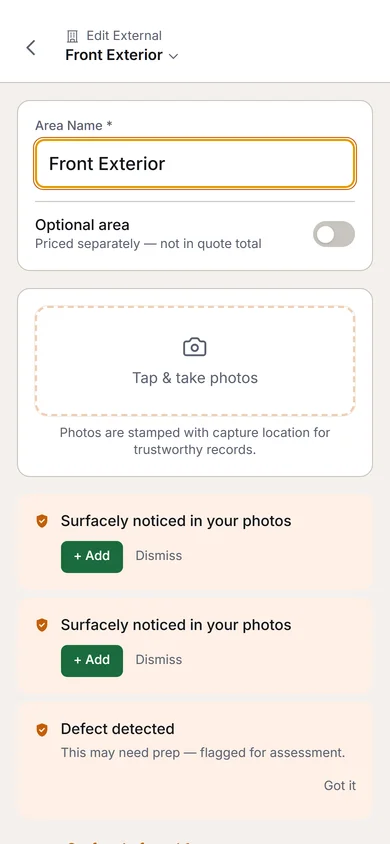
As photos come in, the AI analyses them and surfaces observations:
- Detected defects — cracks, peeling, moisture, staining
- Probable surfaces — the AI's guess at what you're looking at
- Area name suggestions — if you haven't named the area yet
These show up as suggestion chips. They never auto-apply — you confirm or dismiss each one. The AI also pre-populates the defects section of the area assessment so you don't have to re-tag what it already spotted.
What Assist doesn't do
Assist doesn't measure for you and doesn't replace judgement. It's a second pair of eyes that never gets tired, not a replacement for your expertise. Every observation has a confidence score — only the high-confidence ones are offered as suggestions.
Why it matters: the hidden tax on quoting is the mental load of remembering everything you saw. Assist captures that context automatically so when you're back at the desk an hour later, you don't miss the hairline crack you noticed in the bedroom.
Your AI usage is capped at 50 analyses per organisation per day, with a 40-per-user daily limit. That's enough to cover a full day of heavy scoping. If you hit the cap, photos are still stored — they just won't get AI analysis that day.